Build an “Agency Command Center” – How to Automate n8n Google Analytics 4 Reporting – 30 Days of n8n & Automation – Day 20
Welcome back to Day 20 of 30 Days of n8n & Automation.
In Day 19, we mastered the Speedrun Protocol to build workflows faster. In Day 18, we secured those workflows against data leaks.
Today, we apply that speed and security to solve the single most tedious, soul-sucking task in the agency world: Client Reporting.
If you run an agency or manage a SaaS, you know the “First of the Month” dread.
- Log into Google Analytics 4. Take a screenshot.
- Log into Search Console. Export a CSV.
- Log into Facebook Ads. Copy the spend.
- Paste it all into a spreadsheet.
- Write a polite email.
It takes 3-4 hours per client. If you have 10 clients, that is 40 hours—a full work week—wasted on copy-pasting data.
Today, we are going to build the Agency Command Center.
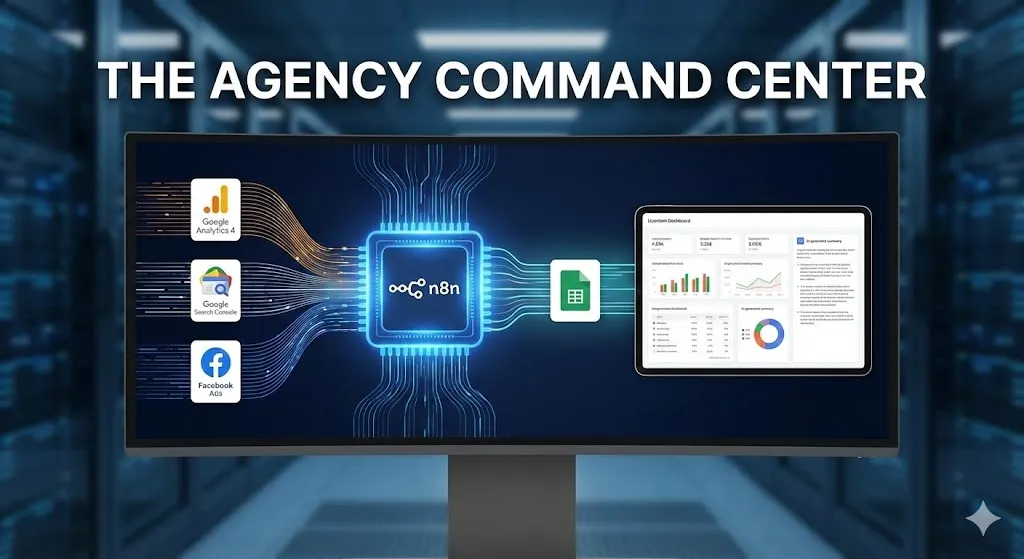
We will build an n8n Google Analytics 4 pipeline that wakes up every Monday morning, fetches the “Golden Metrics,” uses AI to analyze them, and delivers a concise executive summary to Slack or Email.
This isn’t just a tutorial on “how to connect a node.” This is a masterclass on building Self-Updating Intelligence Systems.
The Philosophy: From “Reporting” to “Intelligence”
Before we touch the nodes, we need to fix your mindset.
Most agencies sell “Reporting.” Reporting is looking backward. It is a PDF that says, “Here is what happened.” Clients delete these emails.
We are going to build Intelligence. Intelligence is real-time. It is actionable. By automating the data collection, you free up your time to provide insight.
The “Command Center” Architecture:
- The Source: Google Analytics 4 (Traffic) & GSC (SEO).
- The ETL (Extract, Transform, Load): n8n cleans the messy data.
- The Warehouse: Google Sheets (Simple, shareable, persistent).
- The Analyst: OpenAI (GPT-4 analyzes the trends).
- The Delivery: Slack / Email (Where the client actually lives).
Phase 1: The GCP Handshake (The Hardest Part)
90% of people fail to automate n8n Google Analytics 4 workflows because authentication is a nightmare. Google Cloud Platform (GCP) is designed for enterprise engineers, not marketers.
I am going to walk you through the “No-Tears” Protocol to get your OAuth2 credentials working in 5 minutes.
Step 1: Create the Project
- Go to the Google Cloud Console.
- Create a New Project. Name it:
Agency-Automation-n8n. - Why a new project? Keep your automation isolated. If you mess up permissions here, it won’t break your other client apps.
Step 2: Enable the APIs
GCP is a locked building. You have to explicitly unlock the doors you want to use.
- Go to “APIs & Services” > “Library”.
- Search for and enable these two specifically:
- Google Analytics Data API (Crucial: Do not select the old “Reporting API”).
- Google Sheets API.
Step 3: The OAuth Consent Screen
- Go to “OAuth Consent Screen”.
- Select External (unless you have a Google Workspace Organization, then choose Internal).
- App Name: “n8n Automation”.
- Test Users: Crucial Step. Since you likely won’t verify this app with Google, you must add your own email address (and your client’s email) to the “Test Users” list. If you skip this, the connection will fail with a
403 Access Denied.
Step 4: Creating the Keys
- Go to “Credentials” > “Create Credentials” > “OAuth Client ID”.
- Application Type: Web Application.
- Authorized Redirect URI: This is the most common failure point.
- Go to your n8n instance.
- Open a GA4 node -> Create New Credential -> OAuth2.
- Copy the
OAuth Redirect URLshown there (e.g.,https://n8n.yourdomain.com/rest/oauth2-credential/callback). - Paste it into GCP.
- Click Create. Copy your Client ID and Client Secret.
The Agency Pro Tip: Store these credentials in your n8n Credential Manager immediately. Do not paste them into a notepad. Treat them like bank passwords.
Phase 2: Defining the “Golden Metrics”
Now that we are connected, what do we pull? The mistake beginners make is pulling everything. Clients don’t care about “Bounce Rate on Mobile Devices in Kansas.”
We will pull the Golden Trio:
- Sessions: (Volume – Are we growing?)
- Engagement Rate: (Quality – Do they care?)
- Conversions: (Value – Are we making money?)
Setting up the n8n Google Analytics 4 Node
- Resource:
Report. - Operation:
Run. - Date Range: This needs to be dynamic.
- Don’t hardcode dates. Use n8n Expressions.
- Start Date:
{{ $today.minus({days: 7}).format('yyyy-MM-dd') }} - End Date:
{{ $today.minus({days: 1}).format('yyyy-MM-dd') }} - Why minus 1? GA4 data can take 24 hours to process fully. Never report on “Today” or you will report incomplete data.
- Dimensions:
date,sessionSource. - Metrics:
sessions,engagementRate,conversions.
Phase 3: The “Upsert” Logic (Self-Healing Data)
This is the difference between a “Script” and a “System.”
If you run your workflow twice by accident, a basic script will “Append” the rows again. Now your dashboard shows double traffic. Your client panics. You look incompetent.
We will use the Upsert (Update or Insert) method.
Google Sheets Logic
- Node: Google Sheets.
- Operation:
Add or Update Row(Not just “Append”). - The Key: You need a unique identifier for every row.
- If you are reporting daily, the
Datecolumn is your key. - If you are reporting by Source, you need a Composite Key (e.g.,
2024-01-20_Google-Organic).
- If you are reporting daily, the
- The Logic:
- n8n checks: “Does a row with this Key exist?”
- Yes: Update the numbers (Fixes data if GA4 restates numbers).
- No: Create a new row.
This makes your Agency Command Center resilient. You can re-run the last 30 days of history right now, and it won’t duplicate a single row. It will just “heal” the existing data.
Phase 4: The AI Analyst (GPT-4 Integration)
Here is how you justify a $500/month retainer for this automation.
Don’t just send the data. Interpret it. We will inject an AI Agent into the pipeline to act as a Junior Data Analyst.
The Prompt Strategy
Add an OpenAI Node after your aggregation step. Model: GPT-4o (You need high reasoning).
System Prompt:
“You are a Senior Marketing Analyst for a SaaS company. Your job is to review the raw traffic data below and write a 3-sentence executive summary for the CEO. Rules:
- Highlight the biggest winner (source with most growth).
- Flag any concerning drops (>10%).
- Use professional, concise language. No fluff.”
Input: Pass the JSON output from the GA4 node.
The Output: Instead of a CSV, you get this:
“Traffic is up 12% week-over-week, driven primarily by a surge in LinkedIn referrals. However, Organic Search dropped 5%, likely due to the recent holiday weekend. Recommendation: Double down on the LinkedIn campaign.”
This is value. This is what clients pay for.
Phase 5: Automated Delivery (Slack/Teams)
The final mile is delivery. Don’t ask clients to log into a dashboard. They won’t. Push the data to where they work.
The Slack Block Kit
Don’t just send a text message. Use Block Kit to make it look like a premium software notification.
The Structure:
- Header:
📊 Weekly Intelligence Report(Bold). - Section (AI Summary): The text generated by GPT-4.
- Fields (Key Metrics):
- Traffic: 1,205 (+5%)
- Leads: 45 (+12%)
- Button:
View Full Dashboard(Link to the Google Sheet).
Phase 6: Troubleshooting Common Errors
In my years as a RevOps Engineer, here are the top 3 reasons this workflow breaks (and how to fix them).
Error 1: “403 Access Denied”
- Cause: You didn’t add the user email to the “Test Users” list in GCP OAuth Consent Screen.
- Fix: Go to GCP -> OAuth Consent Screen -> Add User.
Error 2: “Quota Exceeded”
- Cause: GA4 Data API has strict hourly quotas. If you are looping through 50 clients, you will hit it.
- Fix: Use the Wait node. Add a 5-second pause between heavy requests. Or, switch to “Batch Run” in n8n settings.
Error 3: “Empty Data”
- Cause: You are trying to pull “Today’s” data. GA4 is not real-time.
- Fix: Always set your end date to
{{ $today.minus({days: 1}) }}.
The Business Case: Selling the Command Center
This is where we switch from Engineer to Agency Owner.
How do you sell this? You do not sell “n8n automation.” You sell “The Pulse.”
The Pitch:
“Mr. Client, currently we waste 4 hours a month manually copying data. That is time we aren’t spending on strategy. I propose we deploy the Agency Command Center. It connects your GA4, Ads, and CRM into a live, self-healing dashboard. You will get a personalized AI summary every Monday morning. You will never have to ask ‘How are numbers looking?’ again. Investment: One-time setup of $1,000, hosted on our private secure infrastructure.”
Because you are using the Self-Hosted infrastructure we built in Day 1 and secured in Day 18, you have zero marginal cost. That $1,000 is almost pure profit.
Conclusion: Data is Useless Without Action
We have now built a system that:
- Authenticates securely with Google.
- Fetches and cleans data automatically.
- Uses AI to find insights.
- Delivers value directly to the client.
This is the definition of Agency-Grade Automation. You aren’t just moving data; you are creating clarity.
Your Homework for Day 20:
- Create your GCP Project and generate your OAuth Credentials.
- Build a simple workflow that pulls “Sessions” for the last 7 days.
- Send that number to your own Slack channel.
Once you see that notification pop up automatically on Monday morning, you will never go back to manual reporting again.
Next Up: Tomorrow, in Day 21, we are going sci-fi. We are moving beyond “Reporting” into “Research.” We will build an Autonomous AI Agent that can browse the web, research your competitors, and write a report on them.
[Download the “Agency Command Center” Blueprint (JSON)]
About the Author: Alfaz Mahmud Rizve is a RevOps Engineer and Agency Owner who specializes in building Agency-Grade Automation Systems. He helps SaaS founders and agencies move from fragile “zapier-glue” to robust, self-hosted infrastructure.
Follow the full journey: 30 Days of n8n & Automation